

Whilst many people will be looking at the search terms their website ranks for on Google and Bing search engines, they’re completely missing a treasure trove of data right under their nose – queries entered on their on-site search bar.
If you run an e-commerce website or a large website or blog that utilises a search box to help people find what they need, you’ll want to be able to review those internal search queries. First though, we need to capture that data. Fortunately, Google Analytics 4 (GA4) has tracking set up for the most popular query parameters which means that, in most cases, no action is required on your part in order to log the search queries – it’s already tracking them! However, this isn’t always the case, especially if you have a bespoke system or modified search function that uses a different query parameter.
By default, GA4 tracks Site Search in your stream when Enhanced Measurements are enabled. You can check this by going to your Google Analytics Property, going to Admin in the sidebar, then clicking on Data Streams which is under the heading Data Collection and Modification and selecting your specific web stream you want to track site searches on. You’ll then be presented with your Web Stream Details, as shown below.
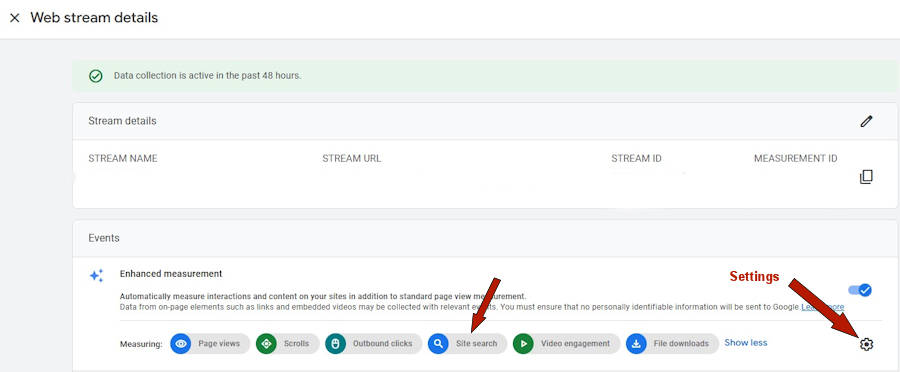
If you’re tracking Enhanced Measurements on your GA4 Site Stream, Site Search will be automatically tracking. It may need adjusting though if using uncommon search query parameters
To check GA4 is tracking correctly, go to the Enhanced Measurements settings cog and locate Site Search and click the Show Advanced Settings.link. This will expand the section as displayed below, detailing the parameters it’s already taking into consideration to track internal searches, such as q, s, search, query and keyword.
How do I know what search parameter my website uses?
It’s very simple to check! Simply go to your website, perform a search in your website’s search box and then check the URL in your browser bar once the search results are returned. Focus on what letters or word is present after the question mark ? and before the = where your search query begins.
Example:
If the search result URL is https://www.example.com/search.php?q=summer+jacket then q would be our parameter. This is already set up as default in GA4’s site search settings query parameter field so no action is necessary as the internal search query data will already have been captured by default.
However, if the URL is something like https://www.example.com/search-results/?_sf_s=summer%20jacket, then _sf_s would be the parameter. As _sf_s isn’t listed in the Search Term Query Parameter field by default, we just need to add it to the existing list, not forgetting to add a comma beforehand to separate it from parameter before it, in this instance below: keyword.
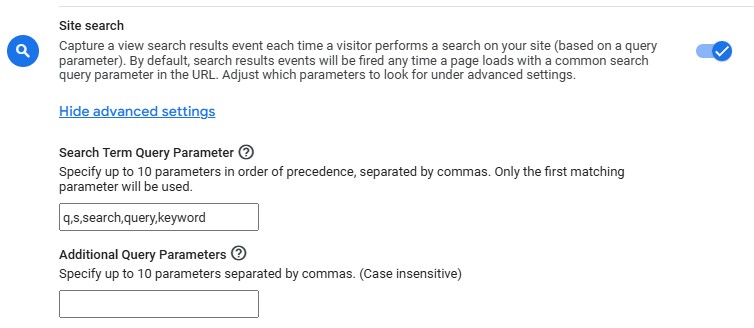
Default Search Term Query Parameters in Site Search Settings in GA4. Add your own parameter if it’s not already listed.
The Additional Query Parameters field is there in case there are any extra parameters in the same URL you want to measure in addition to the main one in your URL, perhaps such as colour or size, but that’s only if the parameter is mentioned in the URL (usually when filters are implemented). This is not required to obtain the search term someone has typed in on your website.
If your website’s internal search query parameter is already present, data will already have been logged from users making searches on your website. If the parameter wasn’t previously listed, GA4 will start to log the search queries from the date you’ve added it to the Search Term Query Parameter field..
View The List of Search Terms Entered On Your Site Search
Now we get to the juicy part – what people have been searching on your website! GA4 will log the search queries under the dimension Search term.
GA4 is a bit of a nightmare to deal with when it comes to actually displaying information. There are a few ways of getting to view the search queries, two of the best being: setting up an Explore report within GA4 or importing the GA4 data and selecting the Search term dimension in Data Studio.
If you’re not already familiar with Data Studio (formerly known as Looker), just can easily create a list of the search terms your users have submitted via GA4’s Explore Report..
Create Internal Search Query Report on GA4
On GA4, click on Explore on the left sidebar and click on Free-Form to create a new report.
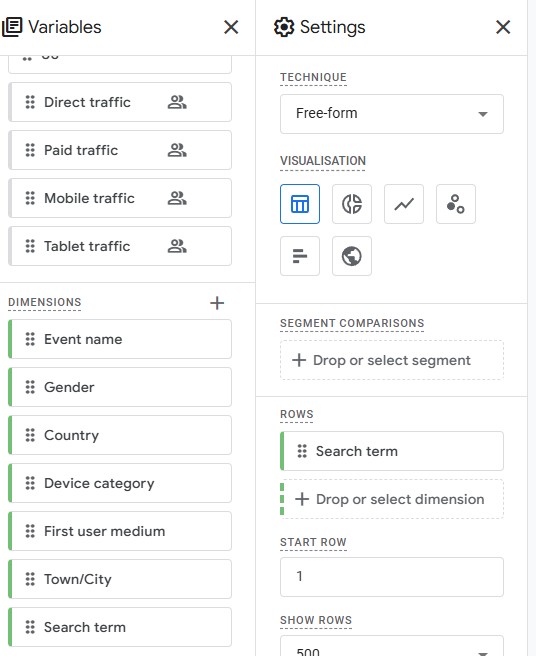
In the left hand Variables column, go to the Dimensions section and press the + add button and select Search term (just search for it in the search box, it’s easier than trying to scroll and find it).
Once Search term has been added to the Variables column, you can either drag it to the Rows section in the right-hand Settings column or click the + to select it from the dropdown.
Your search data will now appear in the report to the right!
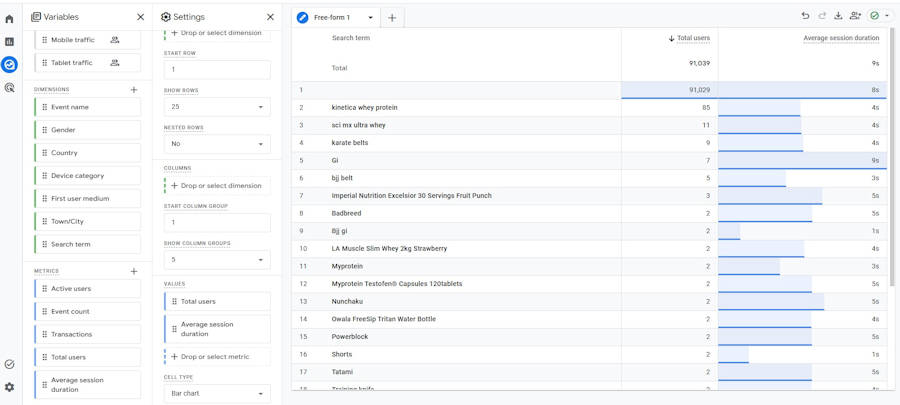
You can alter settings, such as the data range, as well as cross-reference the search queries performed on site with Metrics such as Users and Average Session Duration, which can show how many users searched for the same query and how long, on average, they stayed on the website. You’ll need to add these on the left-hand Variables column first under Metrics, and then drag or select them in the right-hand column under Values, similar to how we set up the Search term.
What Can I do With This Data?
You’ll be amazed at what people search for on your website. It’s more than just an exercise in curiosity – there are actionable ways you can utilise the data reaped from internal website searches to improve your websites for users and optimise it for search engines to lure new visitors to your website.
Create category pages and collections based on searches
If you find that users have been searching a general theme, like summer dresses, this can help you to create new collection or category pages targeting those search queries. If they’re searching it, there’s a good chance more people will want to browse it too. With the knowledge of your industry, you’ll be able to quickly identify fantastic opportunities to group products or pages based on the search queries that will improve user retention and potentially capture users making searches on Google.
Stock new products based on searches
if you’re finding a lot of people are searching for products on your website that you don’t actually stock, maybe it’s a sign that you should. Users clearly expect you to have this product on your store and you could be missing an opportunity if you don’t sell it.
If users are searching for a product you don’t stock and it has absolutely nothing to do with your store or you have no interest in adding it to your inventory, then you need to review your website’s content to see why your website is attracting users who desire this product. It could be that you’re potentially targeting the wrong audience or at least giving the impression you cater for a certain product userbase when you don’t. Cross-referencing your website content with data from Google Search Console can help you identify where these searches are potentially coming from which can help you to de-optimise or fine-tune your content for clarity on what you and don’t serve.
Discover different names for existing products and optimise pages for these
There are items out there that exist under numerous names. Depending on your interests or even what part of the country you reside, you may have a different name for something than the next person. A great example would be a barm cake. There’s an eye-watering amount of name variations for this – bap, bread roll, cob, bread cake, bun, stotty, softie, muffin. On and on it goes.
Using data from search queries can highlight alternative names of products you sell but which you may not have optimised the page for. By researching unfamiliar product names from search queries, you may discover that the product you’ve been selling is known under a different name. With language ever-evolving, it’s important to keep abreast of the various names people give to your products. Using this data, you can optimise your product pages to include the name variations, that way you can attract more interested users to your online store.
If lots of people are searching the same thing, it might indicate it is hard to find on the website
Do you stock an item or category of products but, for whatever reason, there’s a high volume of users searching for it on your website’s search bar? This could be an indication that your website isn’t as user-friendly as you think, and the particular product or category is hard to find on your website without doing a site search. Take the time to review your menu structure and featured links, and improve it if necessary. Link to your popular products from the parent categories. Use the homepage as a gateway to your popular categories. Make navigation as friction-free as possible to help users locate the desired products easier to help improve those sales.




0 Comments